SnakePress for MacSnakePress cho Mac
Capture any part of your screen and mark it up: arrows, numbered steps, text, blur, highlight. This first beta brings screenshots and the editor; recording and Auto zoom follow.Chụp bất kỳ vùng nào trên màn hình rồi đánh dấu: mũi tên, đánh số bước, chữ, làm mờ, highlight. Bản beta đầu tiên có chụp ảnh và trình chỉnh sửa; quay màn hình và Auto zoom sẽ có sau.
Install
Cài đặt
Open
SnakePress_macOS_beta.dmgand drag SnakePress into Applications.Mở file
SnakePress_macOS_beta.dmgvà kéo SnakePress vào thư mục Applications.Open it the first time
Mở lần đầu
In Applications, right-click (or Control-click) SnakePress → Open → Open.
Trong Applications, chuột phải (hoặc giữ Control + click) vào SnakePress → Open → Open.
On macOS 15 Sequoia and newer you will see "SnakePress" Not Opened with only a Done button. That is expected:
Trên macOS 15 Sequoia trở lên bạn sẽ thấy hộp thoại "SnakePress" Not Opened chỉ có nút Done. Đây là bình thường:
- Click Done.
- Bấm Done.
- Open System Settings → Privacy & Security and scroll down to Security.
- Mở System Settings → Privacy & Security, kéo xuống mục Security.
- Next to "SnakePress" was blocked to protect your Mac, click Open Anyway, then enter your password.
- Cạnh dòng "SnakePress" was blocked to protect your Mac, bấm Open Anyway rồi nhập mật khẩu máy.
- Open SnakePress again and click Open. You only do this once.
- Mở lại SnakePress và bấm Open. Chỉ cần làm một lần.
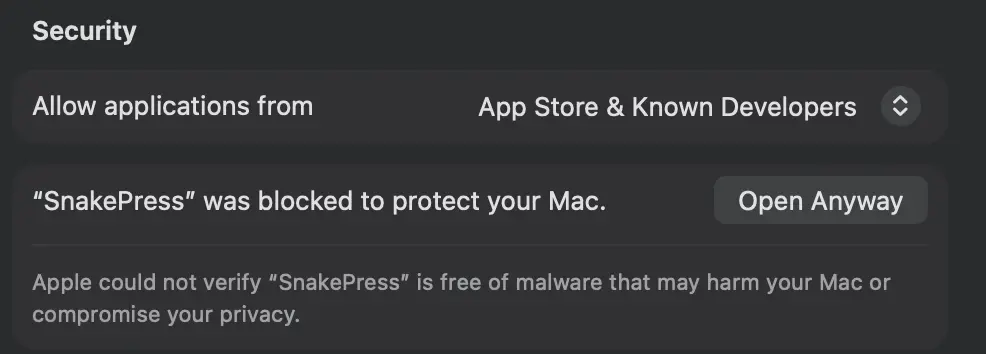
System Settings → Privacy & Security → Security System Settings → Privacy & Security → Security Allow screen capture
Cho phép chụp màn hình
The first screenshot asks for Screen & System Audio Recording. Turn SnakePress on in System Settings → Privacy & Security → Screen & System Audio Recording, then quit and reopen SnakePress.
Lần chụp đầu tiên macOS sẽ xin quyền Screen & System Audio Recording. Bật SnakePress trong System Settings → Privacy & Security → Screen & System Audio Recording, rồi thoát và mở lại SnakePress.
Take a screenshot
Chụp thử
Use the menu-bar icon, or the shortcuts: ⌘⇧2 region · ⌘⇧1 full screen · ⌘⇧7 active window · ⌘⇧8 last region. Change them in Settings.
Dùng icon trên thanh menu, hoặc phím tắt: ⌘⇧2 chọn vùng · ⌘⇧1 toàn màn hình · ⌘⇧7 cửa sổ đang mở · ⌘⇧8 vùng lần trước. Đổi phím trong Settings.
"SnakePress is damaged and can't be opened"
"SnakePress is damaged and can't be opened"
This is Gatekeeper reacting to the download, not a broken file. Open Terminal, paste this and press Return, then open SnakePress again:
Đây là Gatekeeper chặn file tải từ mạng, file không hề hỏng. Mở Terminal, dán lệnh sau rồi Enter, sau đó mở lại SnakePress:
xattr -dr com.apple.quarantine /Applications/SnakePress.appScreenshots come out black or only show the wallpaper
Ảnh chụp bị đen hoặc chỉ thấy hình nền
Screen Recording permission is missing or stale. In System Settings → Privacy & Security → Screen & System Audio Recording, remove SnakePress (−), add it again (+), then reopen the app. With a beta build you may need to do this again after installing a newer beta.
Quyền Screen Recording chưa được cấp hoặc đã cũ. Vào System Settings → Privacy & Security → Screen & System Audio Recording, xoá SnakePress (−), thêm lại (+), rồi mở lại app. Với bản beta, có thể bạn phải làm lại bước này sau khi cài bản beta mới hơn.
Uninstall
Gỡ cài đặt
Quit SnakePress from the menu-bar icon and drag it from Applications to the Trash. Your captures stay in ~/Pictures/SnakePress.
Thoát SnakePress từ icon trên thanh menu và kéo app từ Applications vào Thùng rác. Ảnh đã chụp vẫn nằm trong ~/Pictures/SnakePress.